Google Maps vs Naver Map vs KakaoMap: Which Should You Use in Korea?
Compare Google Maps, Naver Map and KakaoMap for a Korea trip: English support, walking, transit, local searches and actual map screenshots.
If you've just landed in Korea and opened Google Maps out of habit, you might be surprised. It will happily find a café, show you photos, and list reviews. Then you ask for walking directions and it may simply say it can't help.
You don't need to panic, and you don't need to delete anything. Most visitors do best with a local map app as their main tool and Google Maps as a helper. This guide explains which app does what, how to set one up before you arrive, and how to avoid the most common mistake: following a pin to the wrong place.
The short answer
- Naver Map is our recommended first local app. The mobile app works in English and has an English subway map.
- KakaoMap is a solid alternative, and it's worth having as a second opinion when a search or route looks odd.
- Google Maps is still useful for finding places, reading reviews, and keeping the travel lists you've already saved. Just check that it supports the kind of route you need before you rely on it.
Neither local app is better everywhere. They pull from different place databases, so one may find a small shop that the other misses. Having both installed is cheap insurance.
Side-by-side comparison
| Use case | Google Maps | Naver Map | KakaoMap |
|---|---|---|---|
| Best role | Discovery, reviews, saved lists | Main everyday map | Alternative and cross-check |
| Language | Familiar English interface | Mobile app in Korean, English, Japanese, Chinese | App supports English and Korean |
| Walking / driving | May be unavailable; check your route | Supported in the app, including multilingual driving navigation | Car, walking and bicycle routes, plus built-in navigation |
| Transit | Available on the route we checked | Supported, with an English subway map | Supported, with alerts for when to board and get off |
| Discovery | Strong: photos, reviews, familiar layout | Detailed local listings and nearby places | Local listings, ratings, Road View |
| The catch | Missing route modes can catch you out | Desktop site shows Korean; app labels vary by phone | Place names often show in Korean |
Google Maps: good for discovery, check your route mode
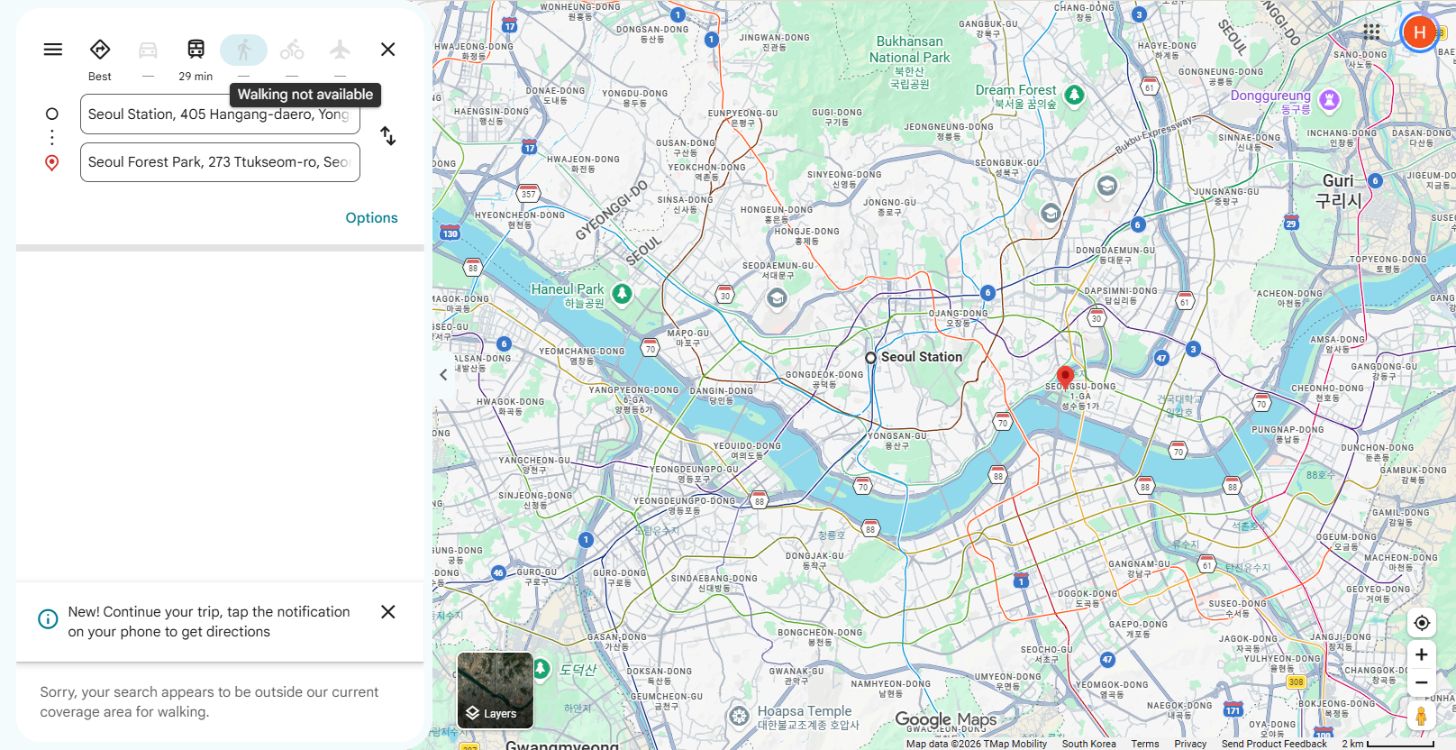
On October 14, 2026, we did a single route check on the Google Maps desktop website, from Seoul Station (405 Hangang-daero) to Seoul Forest Park (273 Ttukseom-ro). An English search found Seoul Forest Park immediately, with photos, reviews, the address and a website link. Transit directions worked. Driving and walking were both marked unavailable, and asking for walking directions gave a message saying coverage wasn't available.
That's one route on one day on a computer, not a test of every device or every city. Features can change. The practical lesson is simple: before you rely only on Google Maps, try the actual route you plan to take and see which modes it offers.
Where Google stays useful is planning. If you've been saving restaurants and sights for months, keep them. Use Google to decide where to go, then use a local app to work out how to get there on foot. For an important meal, check our guide to booking restaurants without a Korean phone number before you set out.
Naver Map: an approachable first local app
If you install one Korean map, make it Naver Map. Naver's own guidance says the mobile app supports English, Japanese and Chinese as well as Korean, and offers an English subway map and driving navigation in multiple languages. Naver's language help page explains how to change the app's language. The exact menu labels differ between iPhone and Android, so look for the language option in settings rather than a specific button name.
One note: the desktop website we looked at showed Korean, and the screenshot below is from that site. The phone app is the version to set up in English.
In our desktop search for Seoul Forest, Naver showed the address, street-view and share controls, which subway exit to use, and venues nearby. That exit detail matters more than you'd expect at large stations.
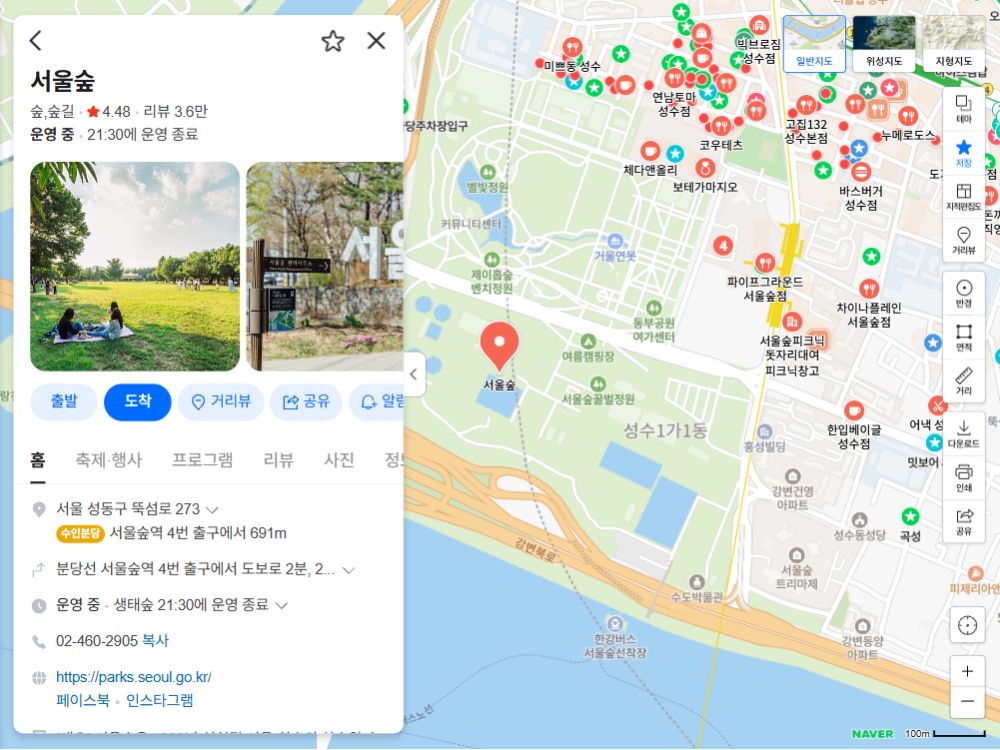
Naver Map desktop website, captured October 14, 2026. The mobile app looks different.
KakaoMap: a strong second opinion
KakaoMap handles directions by car, public transport, bicycle and on foot, and has navigation built in. A handy feature for first-timers is the transit alert, which tells you when to board and when to get off. The App Store listing says the app supports English and Korean and includes Road View (Kakao's street-level imagery), bus information, and favorites you can sort into groups.
When we searched around Seoul Forest on the desktop site, the results came up in Korean: the park itself, a café street, a parking lot, local addresses, Road View, ratings and reviews. That mix is a good reminder of why you should always check which result you tapped.
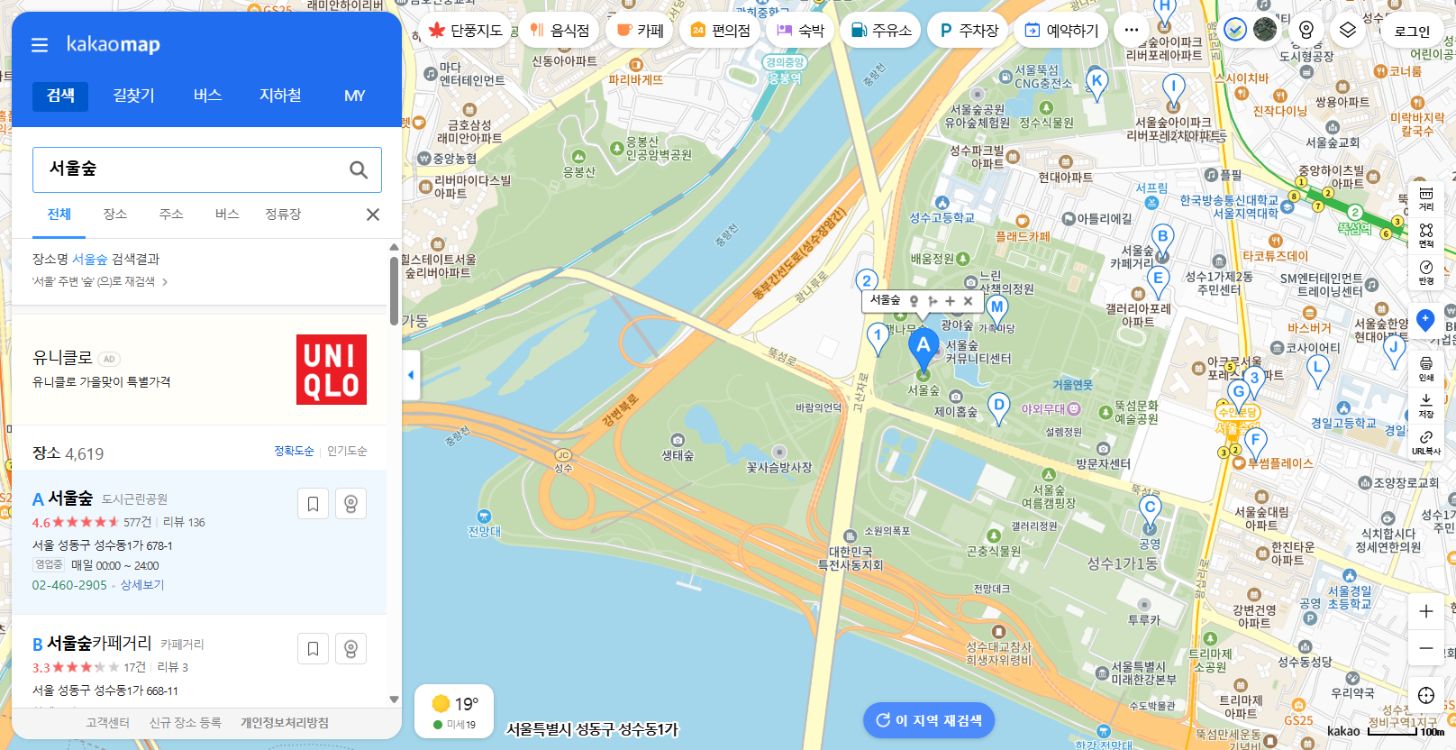
KakaoMap desktop website, captured October 14, 2026. The mobile app looks different.
A simple setup and search workflow
- Install before you fly. Download Naver Map (and KakaoMap if you have space) at home, then set the app language to English.
- Save your hotel's Korean address. Copy it from your booking confirmation into your notes. Keep the Korean version handy to paste into a map app or show to a taxi driver.
- Search smart. If an English name returns nothing, copy the venue's Korean name from its website, Instagram or Google listing and paste that in.
- Confirm the exact place. Many chains have several branches, and one name can mean a park, a station, a street and a car park. Check the address and the entrance before you go.
- Choose your mode deliberately. Choose transit or walking yourself instead of accepting the default, and compare the two if the distance is short.
- Check the exit and the bus direction. Big stations have many exits. Buses with the same number run in both directions, so check which side of the road you need.
- Stay connected. A screenshot or saved pin won't reroute you or update bus times. Keep mobile data on for live directions.
- Know what needs a login. Looking up places and directions usually works without an account. Saving places, syncing lists or making reservations may need you to sign in.
Example: getting to Seoul Forest
Say you want a slow afternoon at Seoul Forest. Type "Seoul Forest" and you'll probably see several results: the park, Seoul Forest Station, a nearby café street and a parking lot. If you're walking from the subway, pick the park or the station, then check which exit puts you closest to the entrance you want. If you're meeting a friend at a café, search the café's exact name and branch rather than the park.
Looking for somewhere to sit afterwards? Our guide to Seoul Forest and Seongsu cafés has ideas. Check each café's current opening hours in the app before you go, because they vary.
Driving in Korea: a note on navigation and TMAP
If you're renting a car, check driving-route availability before relying on Google alone. Naver Map says it offers multilingual driving navigation, and KakaoMap has navigation built in. TMAP is another navigation option to check with your rental company. Before relying on any of them, check that the current version works in a language you're comfortable with. Also ask your rental company whether the car's own navigation can be switched to English. Sort this out in the parking lot, not on the expressway.
My recommendation
Install Naver Map before you arrive and set it to English. Add KakaoMap as your backup. Keep Google Maps for discovery and your saved lists. Before you walk anywhere, confirm the exact place and address.
Frequently asked questions
›Is Google Maps useless in Korea?
No. It's good for finding places, reading reviews and planning. Some route types may not be available, so test your route before you depend on it.
›Do I need both Naver Map and KakaoMap?
You don't need both, but it helps. Use one as your main app and open the other when a place doesn't appear or a route looks strange.
›Will saved maps work without data?
Don't count on it. Screenshots and saved pins help you remember where you're going, but live directions and transit updates need a connection.